SMS Two-Factor Authentication
Last updated: May 2026
Overview
ChronoMedAI offers SMS-based two-factor authentication (2FA, also called multi-factor authentication or MFA) as an optional security enhancement for your account. When SMS 2FA is enabled, signing in to ChronoMedAI requires both your password and a one-time verification code sent to your mobile phone — making it significantly harder for someone else to access your account, even if they learn your password.
SMS 2FA is available only to existing ChronoMedAI account holders. There is no public sign-up for SMS messages. You enroll your phone number from inside the account portal after signing in, and you can remove it or switch to a different 2FA method at any time. ChronoMedAI never sends marketing or promotional messages by SMS — only account security codes.
How to enable SMS 2FA
SMS 2FA enrollment happens entirely inside your ChronoMedAI account. The full flow:
1Sign in to your ChronoMedAI account
Go to the ChronoMedAI portal and sign in with your email address and password as you normally would.
2Open your account security settings
From the portal, navigate to Settings → Security. You will see the Two-Factor Authentication panel listing any 2FA methods you already have enabled, with an option to add another.
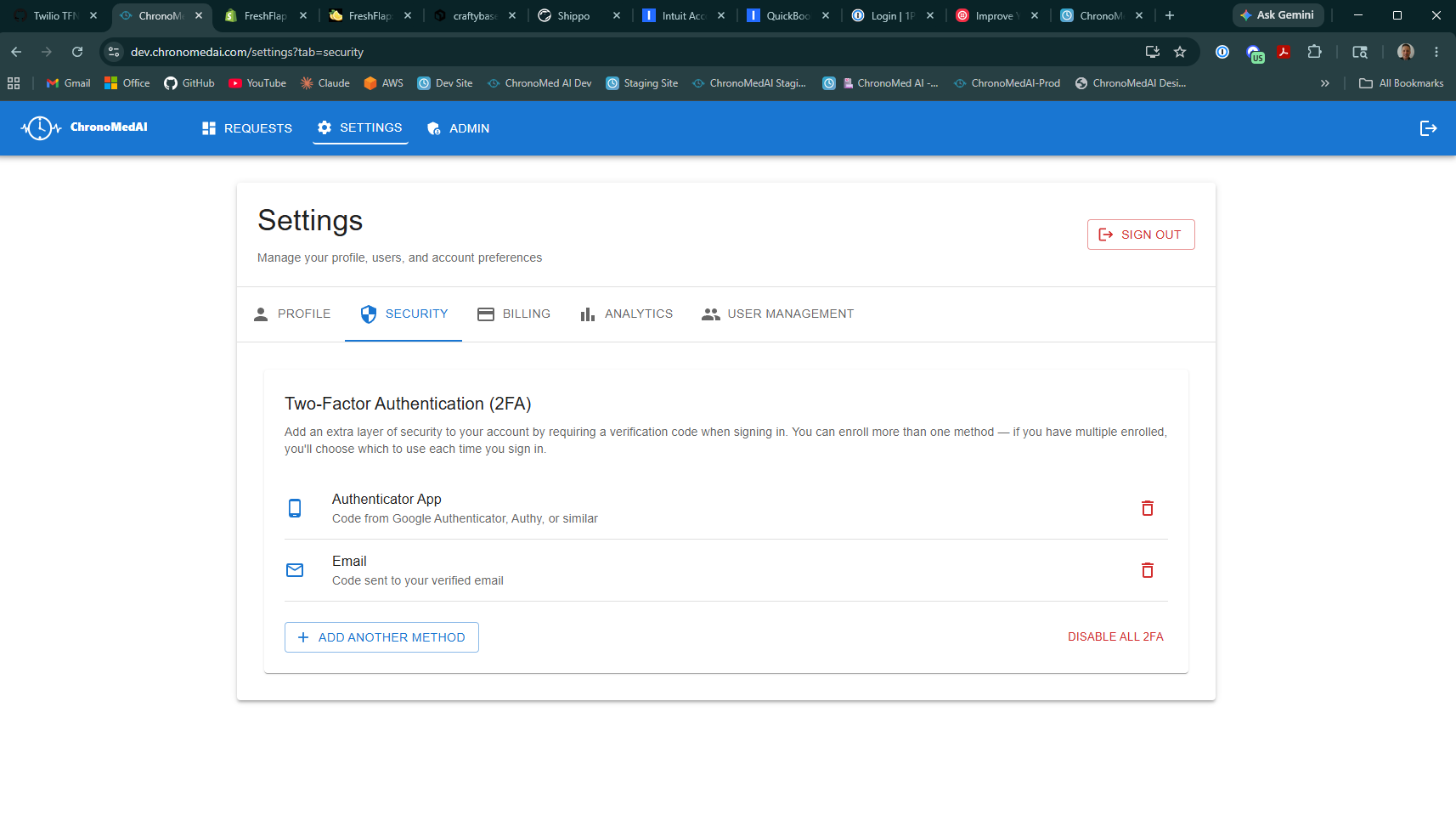
Step 2: the Two-Factor Authentication panel in Settings → Security.
3Choose Text Message (SMS) as your 2FA method
Click Add another method and select Text Message (SMS). The dialog displays a summary disclosure explaining that by selecting Text Message you consent to receive SMS verification codes from ChronoMedAI, that message and data rates may apply, that you can reply STOP at any time, and that the full Privacy Policy and Terms apply.
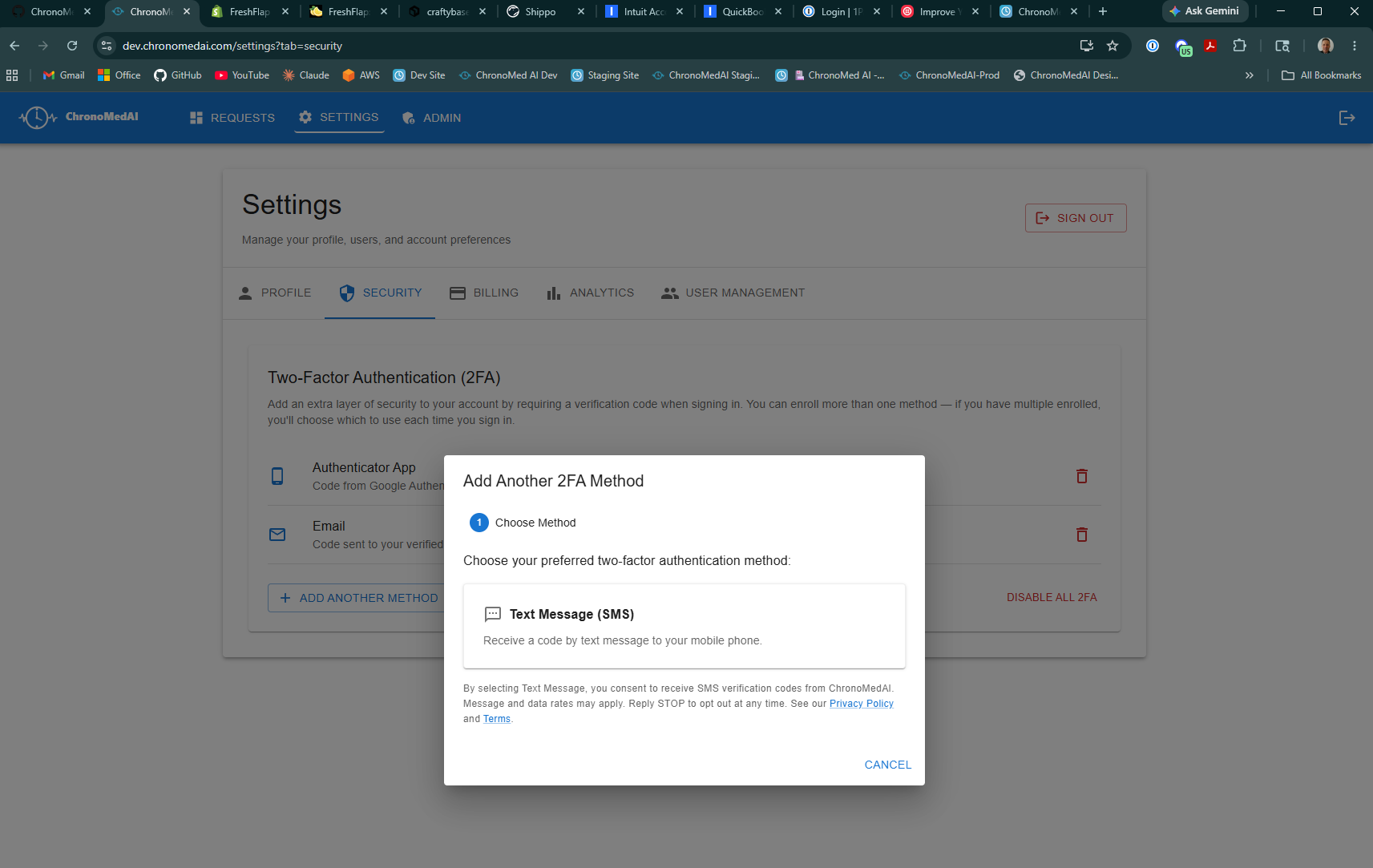
Step 3: choose Text Message (SMS) as the 2FA method.
4Enter your mobile phone number and agree to receive codes
Enter the mobile phone number where you want to receive verification codes. Use international format with country code — for example, +15551234567 for a US number. The dialog re-states what messages you will receive, message frequency, message and data rate disclosure, and STOP / HELP instructions, with links to the Privacy Policy and Terms.
You must actively check the consent checkbox (not pre-selected) before the Send Code button becomes enabled. Once the box is checked and a valid phone number is entered, click Send Code.
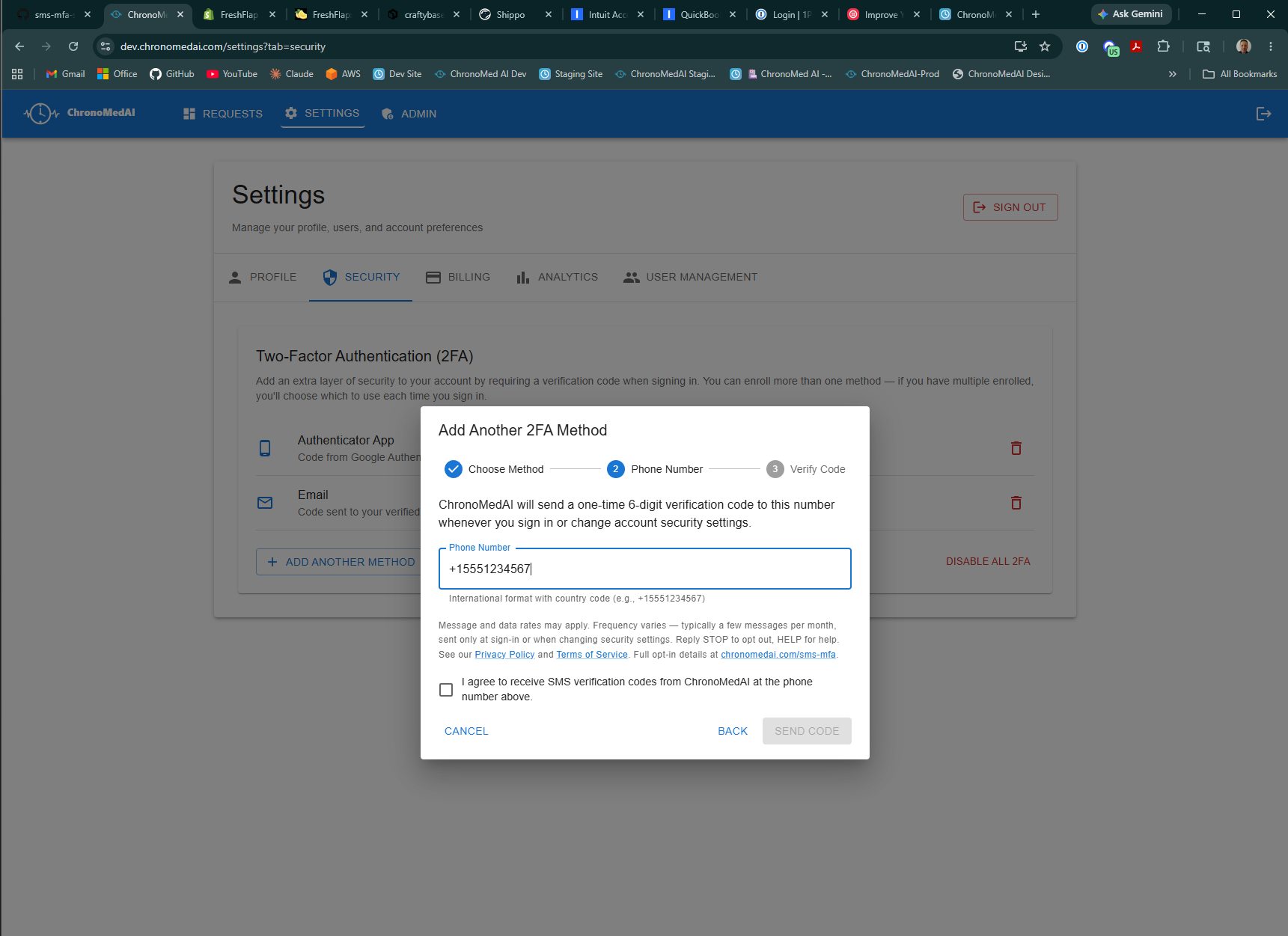
Step 4: phone number entry, full disclosure, and unchecked consent checkbox — the Send Code button is disabled until the user actively checks the consent box.
5Receive a one-time verification code by SMS
ChronoMedAI sends a 6-digit verification code to the phone number you entered. The text message looks exactly like this:
(The 6-digit code is different every time and expires after a short period.)
6Enter the code to confirm enrollment
Type the 6-digit code into the portal and click Verify & Enable. Your phone number is now enrolled and SMS 2FA is active on your account.
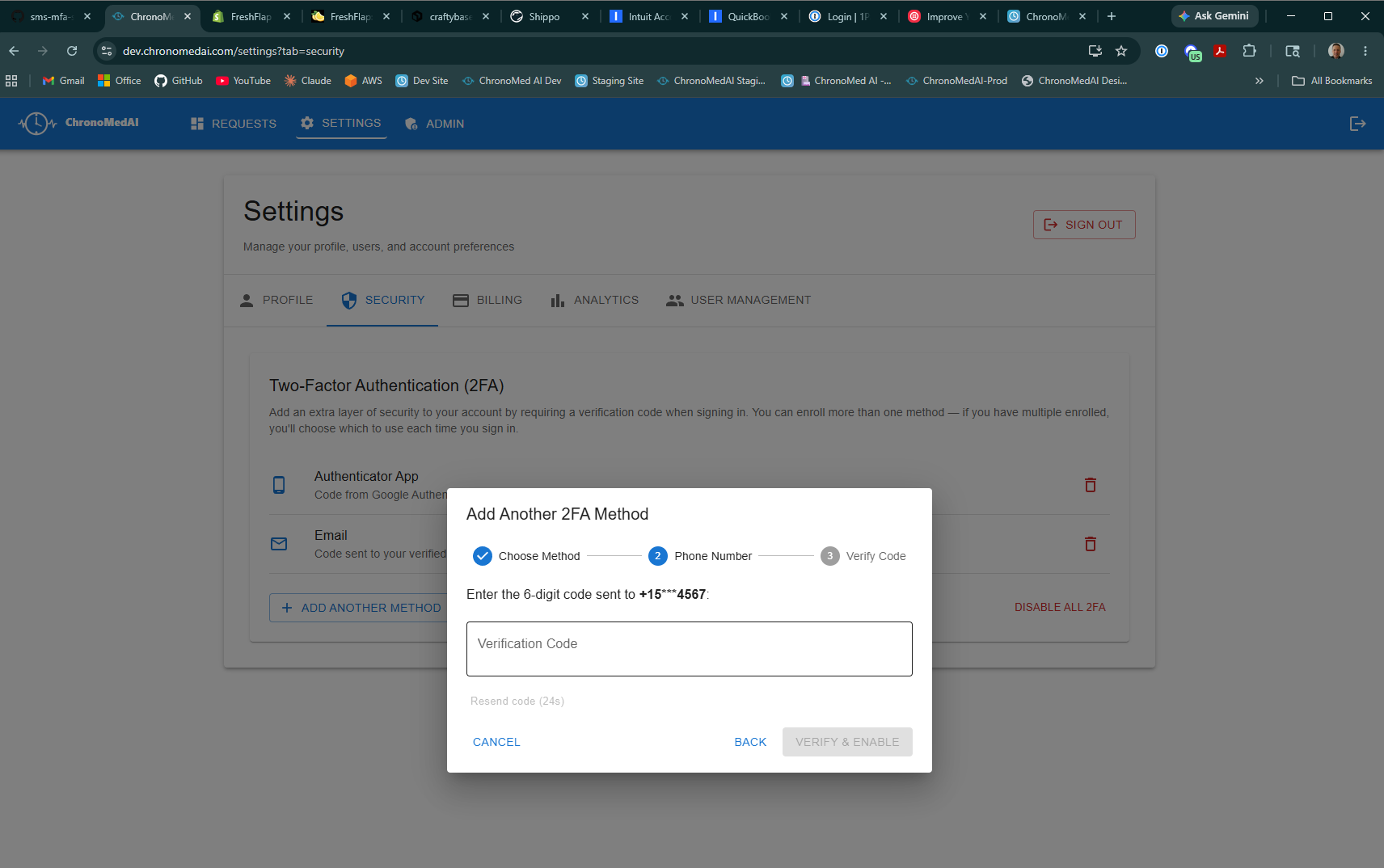
Step 6: enter the 6-digit verification code to complete enrollment.
What messages you'll receive
Once SMS 2FA is enabled, ChronoMedAI sends an SMS message to your enrolled phone number in only two situations:
- When you sign in, so you can complete two-factor verification.
- When you change account security settings (for example, updating your password or changing your 2FA method), to confirm the change is being made by you.
The exact message text you'll receive is:
where XXXXXX is a unique 6-digit code that changes each time.
Message frequency
Frequency depends on how often you sign in or change security settings. For most users this is a handful of messages per month at most. ChronoMedAI does not send marketing, promotional, or transactional notifications by SMS — only the account-security codes described above.
Message and data rates
Message and data rates may apply according to your mobile carrier plan. ChronoMedAI does not charge any fee for the SMS messages it sends; any charges come from your carrier.
How to stop messages (STOP) or get help (HELP)
You can opt out of SMS 2FA messages at any time:
- Reply
STOPto any verification message. You will be unsubscribed immediately and ChronoMedAI will stop sending SMS verification codes to that number. After replying STOP, you will need to use an authenticator-app-based 2FA method to sign in — you can set this up from Settings → Security → Multi-Factor Authentication. - Reply
HELPto any verification message for support information, or email support@chronomedai.com directly. - Remove your phone number from your account by going to Settings → Security → Multi-Factor Authentication and either disabling SMS 2FA or switching to a different 2FA method (such as an authenticator app).
Our privacy commitment
Your mobile phone number is used only to deliver account security codes. ChronoMedAI:
- Will never sell, rent, or share your mobile phone number or SMS opt-in consent with third parties or affiliates for marketing or promotional purposes.
- Stores your phone number encrypted, alongside your account record, and deletes it when you disable SMS 2FA, remove the number, or close your account (subject to any audit-retention requirements under HIPAA).
- Transmits your phone number to our SMS delivery provider only for the purpose of sending the verification codes described above.
For full details on how we handle phone numbers and other personal information, see the SMS Messaging and Phone Numbers section of our Privacy Policy and the SMS Messaging Terms section of our Terms of Service.
Questions
If you have questions about SMS 2FA, how we handle your phone number, or anything else about ChronoMedAI account security, contact us at support@chronomedai.com.